Home & Campaigns
Home is your scoreboard: sales, sign-ups, and what needs your attention next. Campaigns is where every popup lives. This page walks through both, top to bottom.
The Home page
The stats bar
Under the greeting sits one row of the numbers that matter: Attributed sales (shown once you have your first sale), Opt-in (your email opt-in rate), Sign-ups, and Views. Each number carries a small chip showing how it compares to the previous period. Next to the bar, + Create popup starts a new popup in the wizard.
Date ranges
The date picker controls everything on the page. It offers quick presets (Today, Yesterday), rolling windows (Last 7 / 14 / 30 / 90 / 365 days), calendar periods (This Week, Last Week, This Month, Last Month, This Quarter, This Year), and a two-month calendar for a custom range. The default is Last 30 days, and your choice is remembered.
The big chart
The hero card charts one metric per day, with a dashed ghost line for the previous period. A dropdown swaps the metric:
| Metric | What it shows | Substats |
|---|---|---|
| Attributed sales (default) | Revenue from orders matched to popup sign-ups. See attribution. | Orders · average order · purchase rate |
| Email opt-in rate | The share of popup views that left an email. | Views · email opt-ins · SMS opt-ins |
| Number of sign-ups | Every email and phone number collected. | Views · email opt-ins · SMS opt-ins |
| Popup views | How many times a popup was shown. | Visitors · sign-ups · opt-in rate |
Before you have data, the card tells you the exact next move instead: + Create popup if nothing is built yet, or Go live → if a popup is built but not live.
Getting set up
New accounts see a progress ring and a six-item checklist. Each row links straight to the place that completes it:
- App installed: done the moment you install.
- Build your first campaign
- Set a campaign live
- Connect email or SMS: see Integrations.
- First signup: happens on its own once you're live.
- First attributed sale: also automatic.
When you reach 100, the ring retires. In its place you get Today vs your best day: live bars showing today's sales, sign-ups, and views racing your all-time records. Beat a record (with enough history for it to mean something) and you get a one-time confetti burst.
Top campaigns
A strip of up to four campaigns, live ones first, each with a live mini-preview of the actual popup, its status, and one stat line (attributed sales, or views and opt-in rate). Click one to open it in the builder. View all campaigns → jumps to the Campaigns page.
Loose ends
The bottom of Home surfaces unfinished business so nothing stalls silently:
- "…has edits visitors can't see yet": a live popup with unpublished draft edits. Review → publishes them.
Drafts are not listed here. A draft is a deliberate state; publish one from the Campaigns page when you're ready.
The Campaigns page
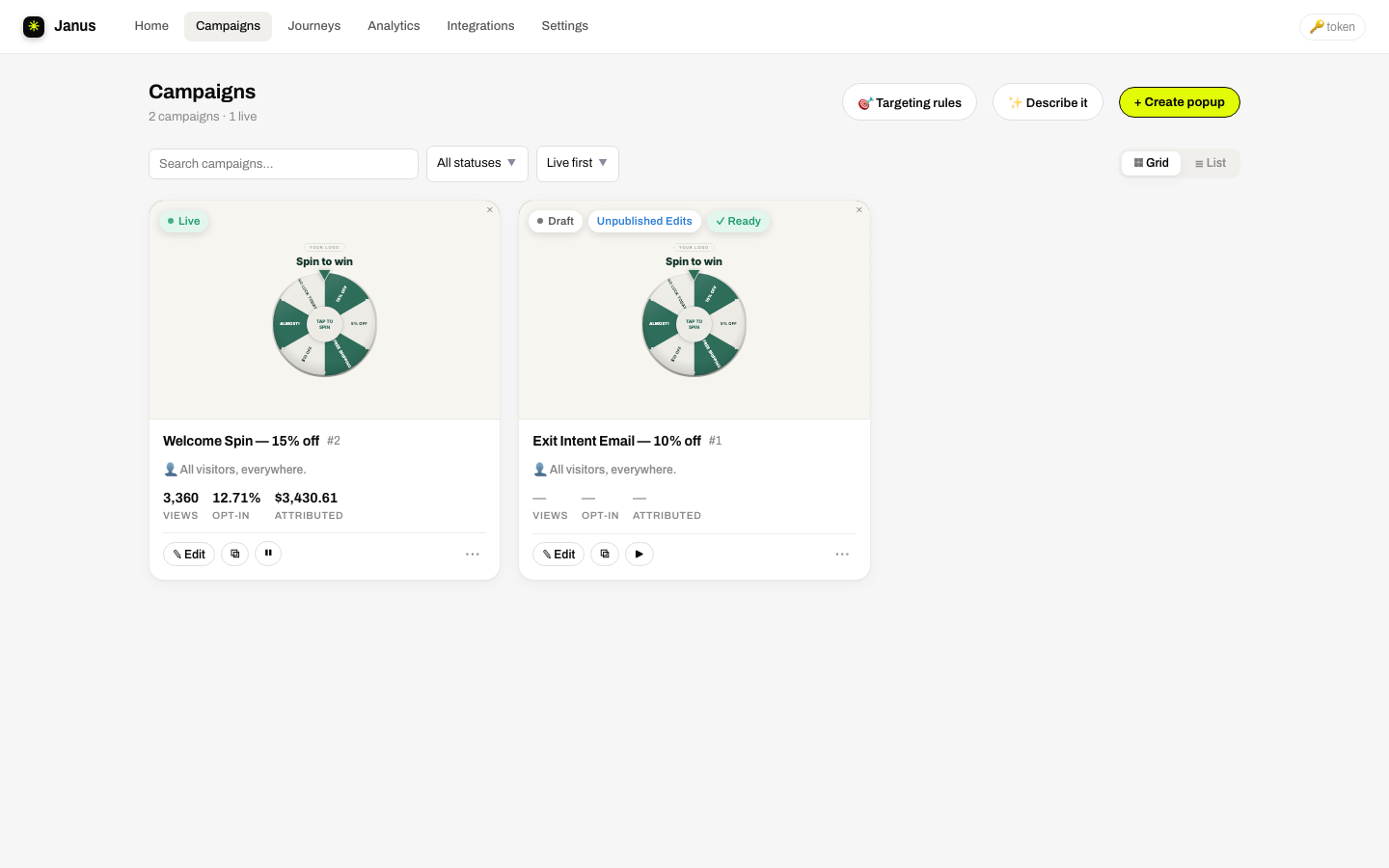
The header shows your campaign count and how many are live, plus two buttons: Segments (reusable saved audiences, see targeting) and + Create.
Finding things
- Status chips with live counts: All · Live · Testing · Drafts · Paused · Unsaved edits · Archived. Chips with a count of zero hide themselves. Unsaved edits means a live or paused campaign whose draft differs from what visitors see.
- Search by name or id.
- Sort: Live first (the default), Recently edited, Most views, Best opt-in rate, Name A–Z.
- ▦ Grid / ☰ List: your choice is remembered.
What's on a campaign card
- A live mini-render of the popup. Hover for ✎ Edit popup and ↗ Preview.
- A test line when an A/B test is running: "Testing · 2 popups", plus the leader once a lead is statistically real. A live popup that's never been tested gets a gentle Never tested · start a test → nudge.
- Name and last-edited time. Click the name to open the campaign page.
- A targeting chip summarizing who sees it; click to edit the audience.
- Key stats: opt-in rate and attributed sales.
- A test-history footer: "3 tests run · last winner +12% →".
- Badges: the status ribbon, a calendar pill if the campaign is scheduled, and a readiness pill that appears only when something blocks publishing.
- Quick actions: ✎ Edit, a live/paused toggle switch, and the ⋯ menu.
List view
List view lines campaigns up in columns: preview, name, then views · sign-up · revenue. Campaigns running a test (or holding several popup versions) get a chevron that expands per-popup sub-rows, each with its traffic split, its own stats, and a lift badge against the control. Checkboxes enable the bulk bar: Pause, Set live, Archive.
The ⋯ menu
- Campaign details: the full campaign page: performance, targeting, tests, history.
- Preview popup: desktop/mobile preview on a live render of your storefront, plus Open on your store ↗ (a private
?ps_previewlink only you see). - Duplicate: copies everything as a new draft.
- Edit targeting: the audience builder.
- New test: the A/B test wizard.
- Setup wizard: only on campaigns that don't have a popup built yet.
- Unarchive: on archived campaigns; restores to draft.
- Delete: the card disappears immediately, with a ~5-second Undo toast before anything is final.
Going live safely
Setting a campaign live when it isn't ready opens a Popup may not be ready dialog listing the exact blockers (a missing reward, a broken step route), with a Set live anyway escape hatch. The same checks run when you publish from the builder.