The popup wizard
Five guided steps from nothing to a finished draft (design, brand, game, reward, sign-up and triggers) with the real popup rendering live beside every choice. Tap it, spin it, type in it: the preview is the actual popup.
Step 1 · Start
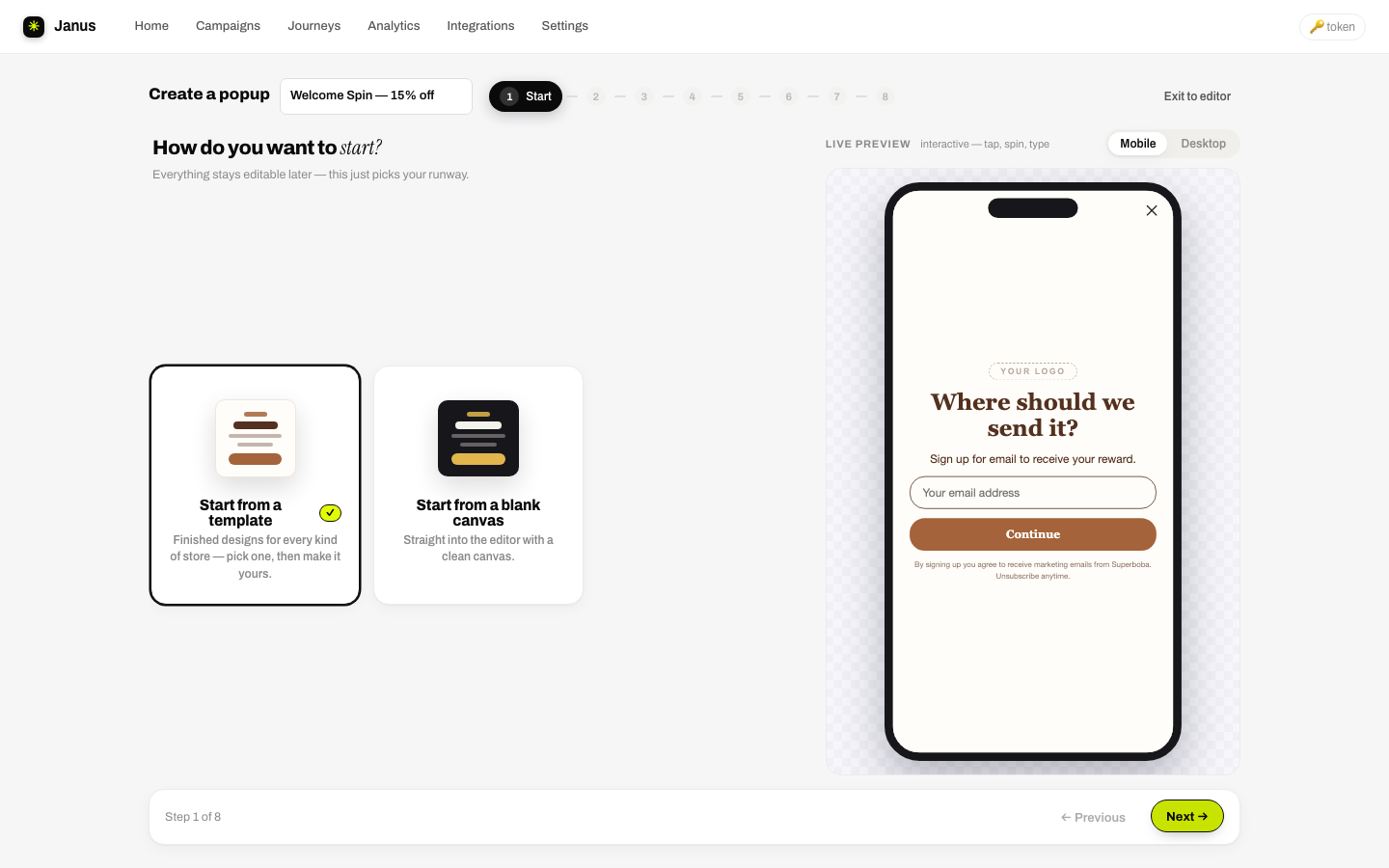
Two doors:
- Build a popup: the guided path below. Pick a finished design, make it yours, and launch; game, reward and sign-up included.
- Import a popup: clone the popup already running on your site (or any brand's site) into a fully editable draft. See Importing.
A quiet third option, or start from a blank canvas →, writes a clean starter popup carrying your brand defaults and opens the builder immediately.
Step 2 · Design
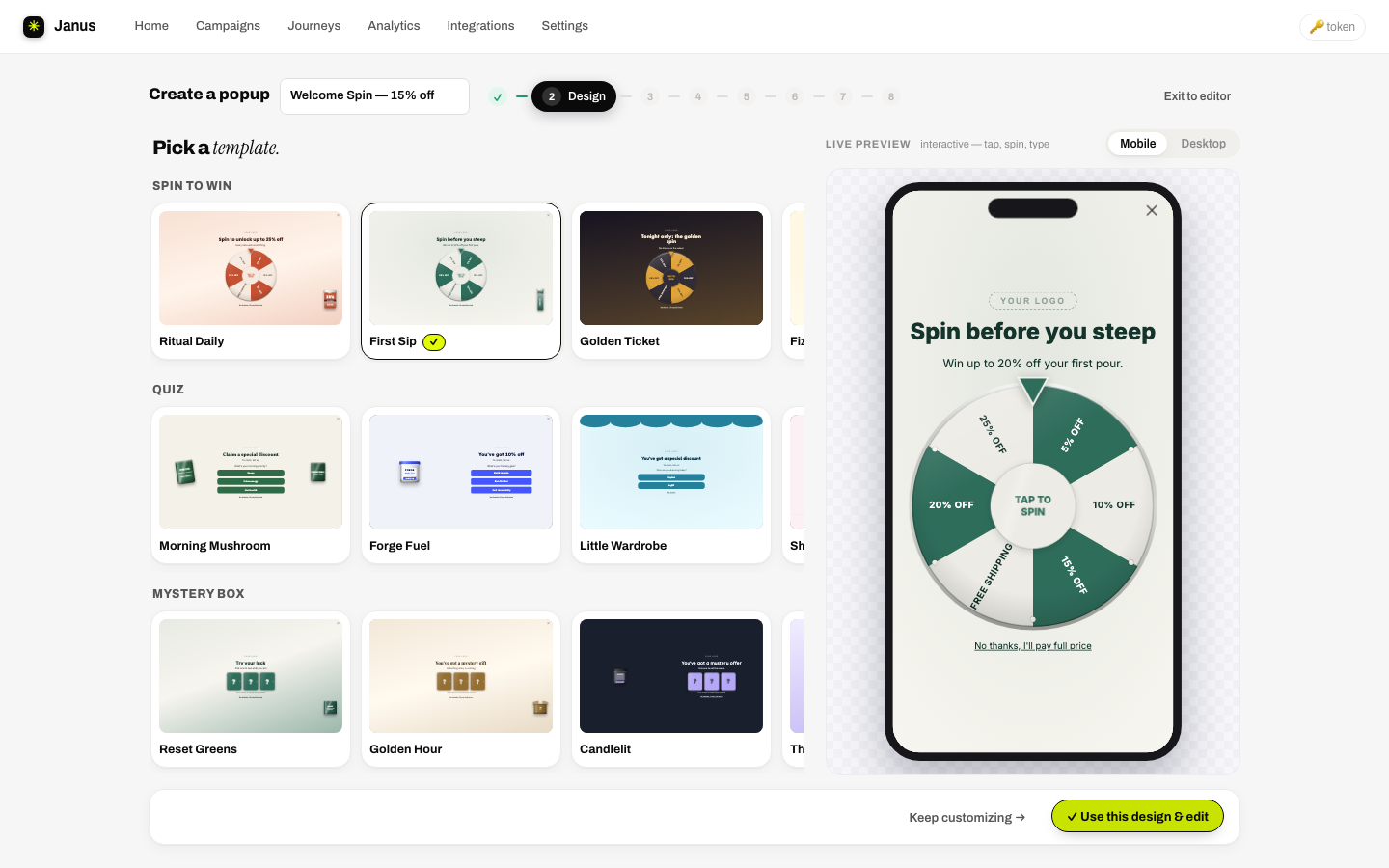
The template gallery, shelved by opener with a sticky filter rail: All templates, Spin to win, Mystery box, Scratch off, Plinko, Slot machine, Pick a card, Yes / No, Email & sign-up, plus Your templates once you've saved your own. Every card is a live render, and picking one carries the design into the rest of the wizard.
Don't overthink the pick; colors, fonts and copy become yours in the next step.
Chose the Import door instead? This step shows the import card. Point it at a site; the found popup takes over the preview, and ✓ Use this popup & edit adopts it as your draft.
Step 3 · Brand
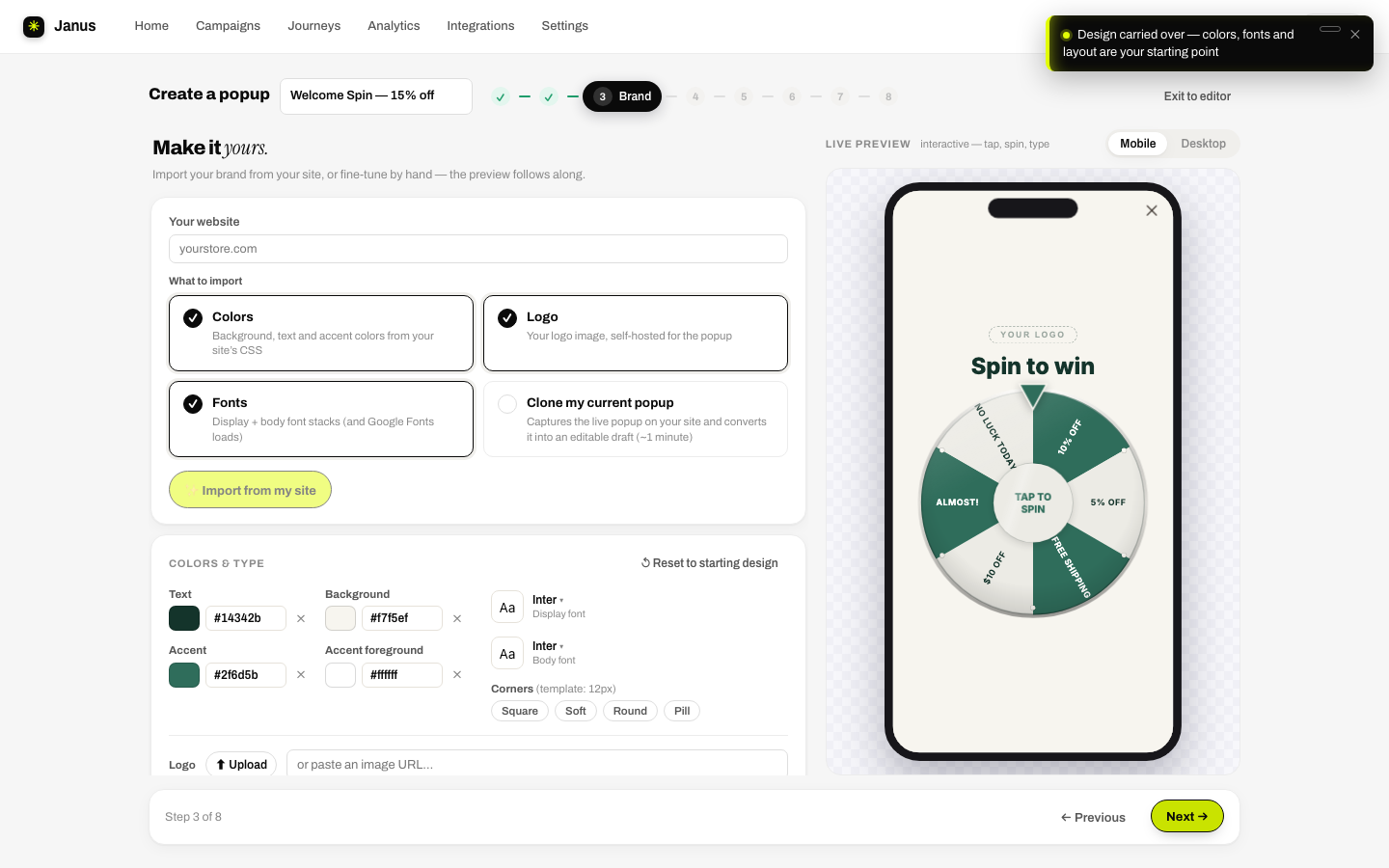
Make it yours, fast:
- Import from your site: one-click scan of your connected store, or paste any URL. Choose what to pull (Colors, Logo, Fonts) and hit Import from my site. Results preview as swatches, a self-hosted logo and mapped font names. Details: Importing.
- Fonts: a curated wall of font pairings, grouped by vibe. Need one specific font? Open Need one specific font? Pick individually… for full display- and body-font pickers.
- Colors & shape: pickers for Background, Text, Accent and Accent text; Square / Soft / Round / Pill corner chips; a logo upload (PNG, JPEG, WebP, GIF or SVG up to 5 MB) or URL.
- ↺ Reset to starting design reverts to the template's own brand.
Step 4 · Popup
This step assembles the flow. It's an accordion of four rows; expanding a row drives the live preview to that screen, and each row header shows a one-line summary with a status dot, so you always know what's set and what needs attention.
Teaser button
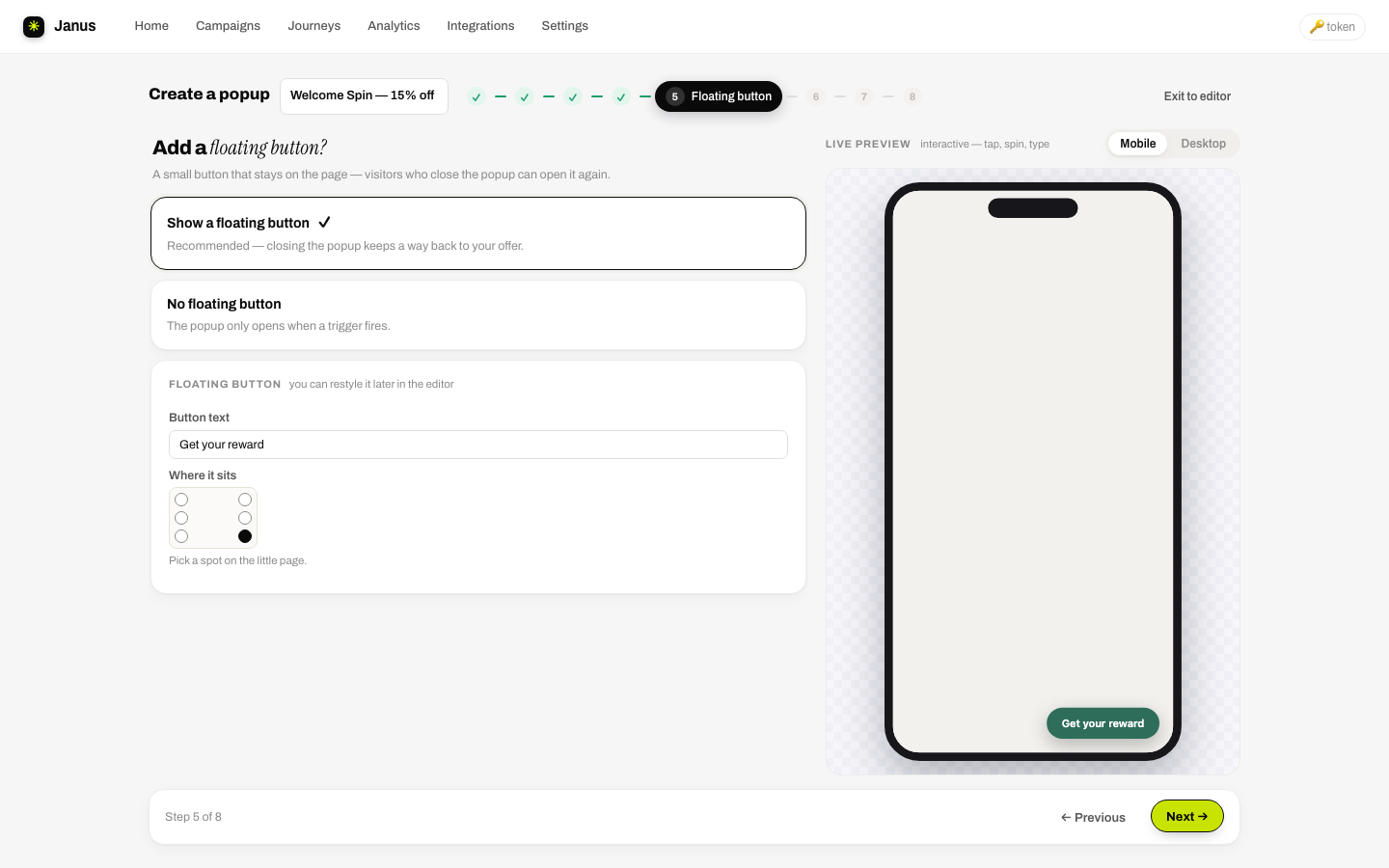
Show a teaser button (recommended) keeps a way back to your offer after the popup closes: set the button text (default "Get your reward") and pick its spot with the position dots. No teaser button means the popup only returns when a trigger fires again. Shapes, entrances, nudges and the code chip live in the builder; see The teaser button.
Opener
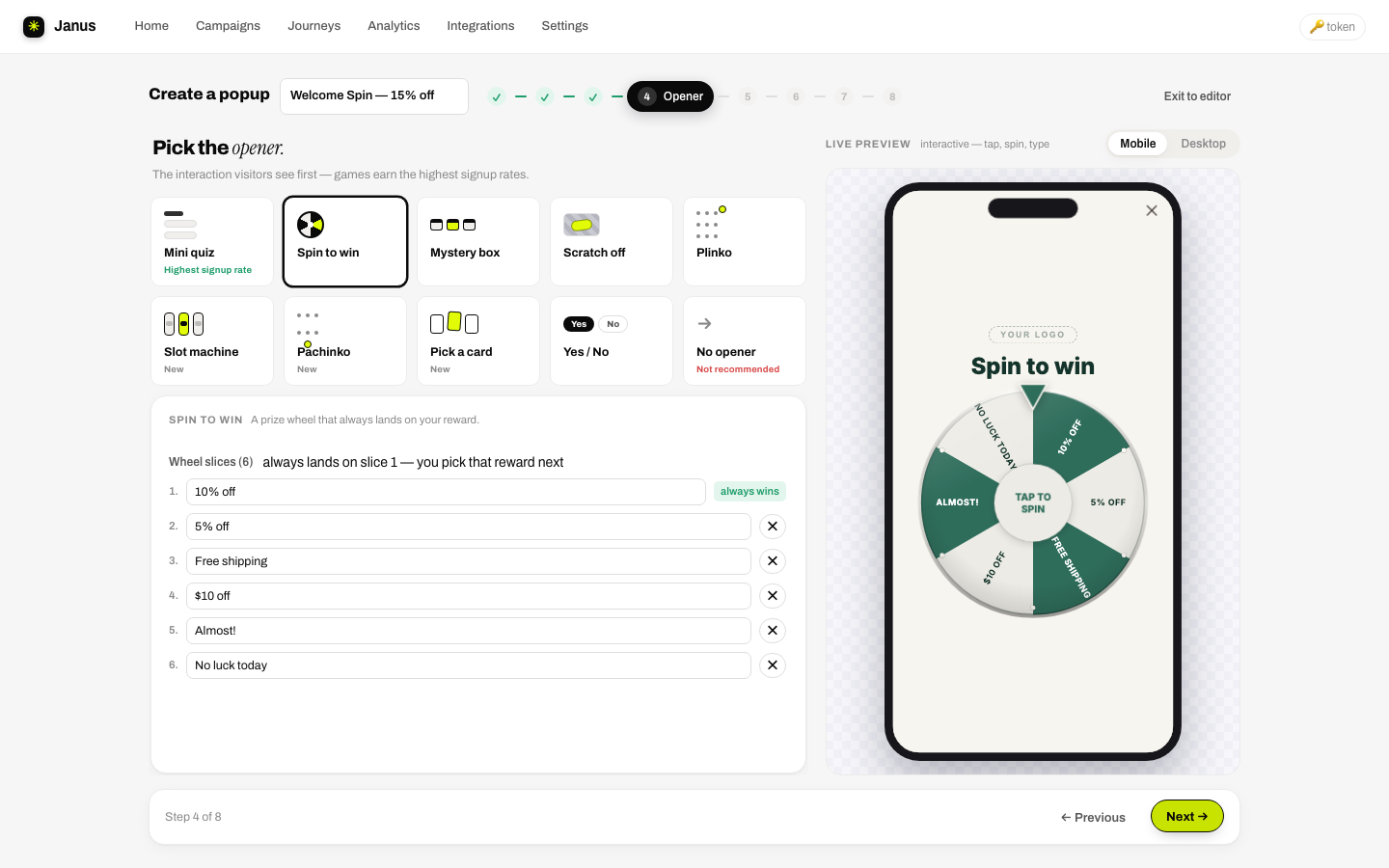
The first screen visitors meet. Tiles:
| Opener | Inline setup |
|---|---|
| Mini quiz (highest signup rate) | The question plus a drag-reorderable answer list. Answers become zero-party data sent to your integrations. |
| Spin to win | The wheel slices. Slice 1 always wins: it's your reward; the others are editable decoys (up to 6 slices total). |
| Yes / No | The question and both button labels: a micro-commitment before the form. |
| Mystery box · Scratch off · Plinko · Slot machine · Pick a card | No setup needed here; their deeper settings live in the builder's game inspector. |
| No opener (not recommended) | Jumps straight to sign-up. Earned offers convert better. |
Reward
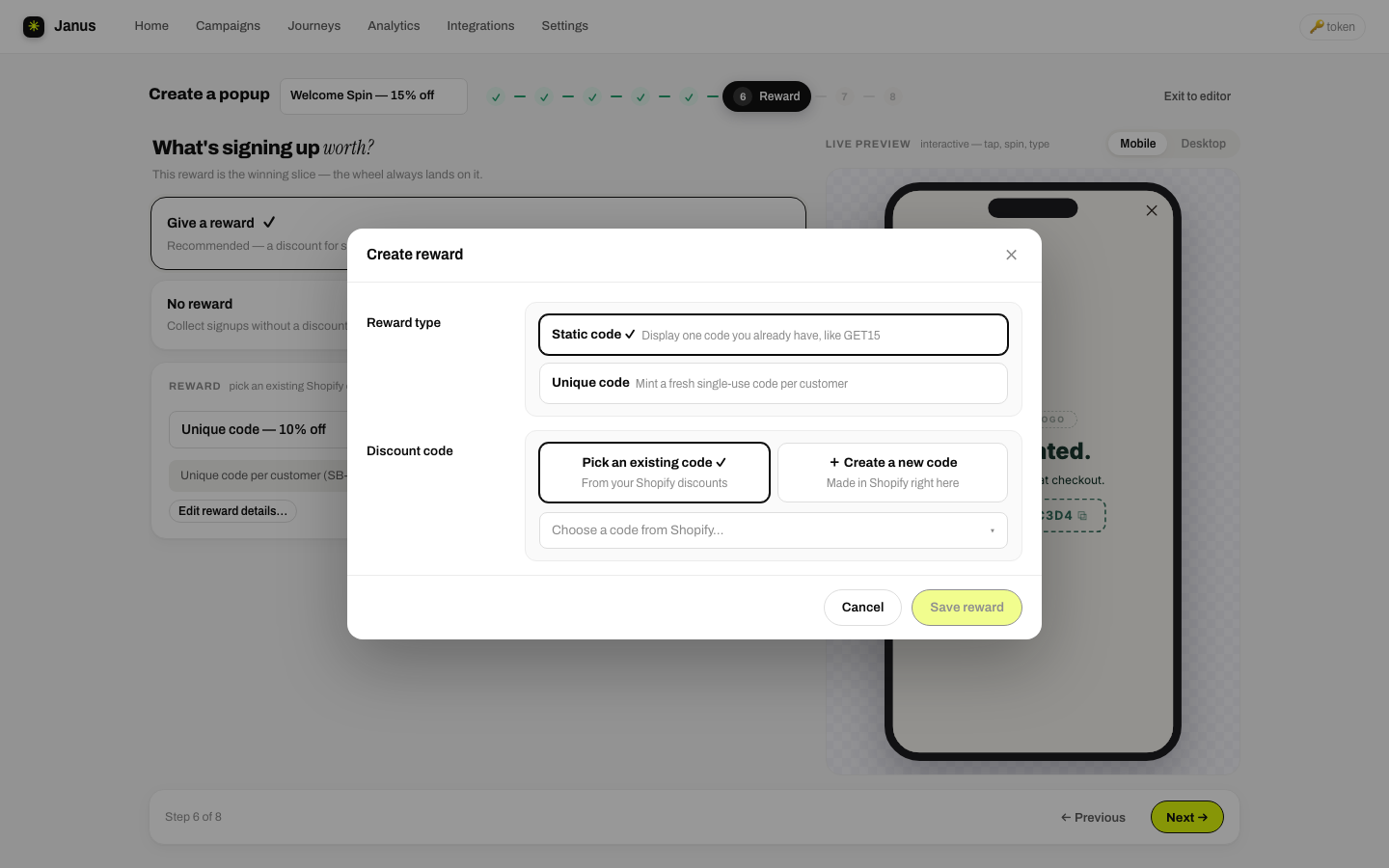
With Give an offer selected, pick an existing Shopify code from the list or + Create an offer:
- Static code: one code everyone sees (pick an existing one, or create it in Shopify from inside the editor).
- Unique code: Janus mints a fresh single-use code per subscriber, with your prefix, percent / amount / free-shipping value, minimum spend, combinability, subscription rules and an expiry clock that starts when the code is issued. The default reward is a unique 10%-off code that expires after 72 hours.
No offer collects signups without a discount and ends on a thank-you step. Full reference: Offers & discount codes.
Sign-up
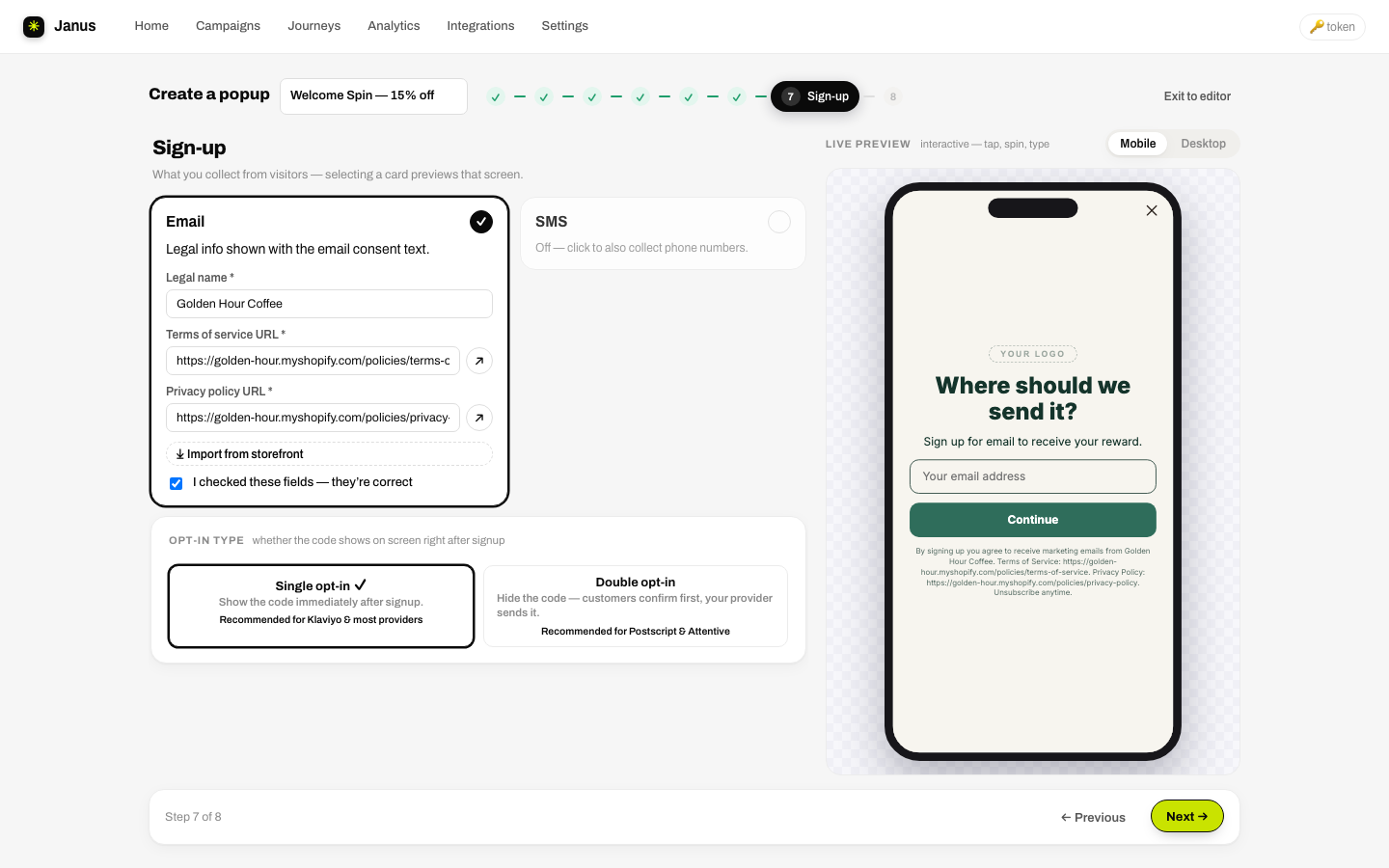
- Email (always on): your Legal name, Terms of service URL and Privacy policy URL are required; they feed the consent line under the form. ⤓ Import from storefront fills all three from your store.
- SMS: toggle on to add a phone step after email, with a default-country picker and the required TCPA consent text built in.
- Opt-in type: Single opt-in shows the code immediately after signup (recommended for Klaviyo). Double opt-in hides the code until the customer confirms through your provider, which then delivers it (recommended for Postscript & Attentive); you choose whether codes go out by email or SMS. See offer delivery.
Step 5 · Launch
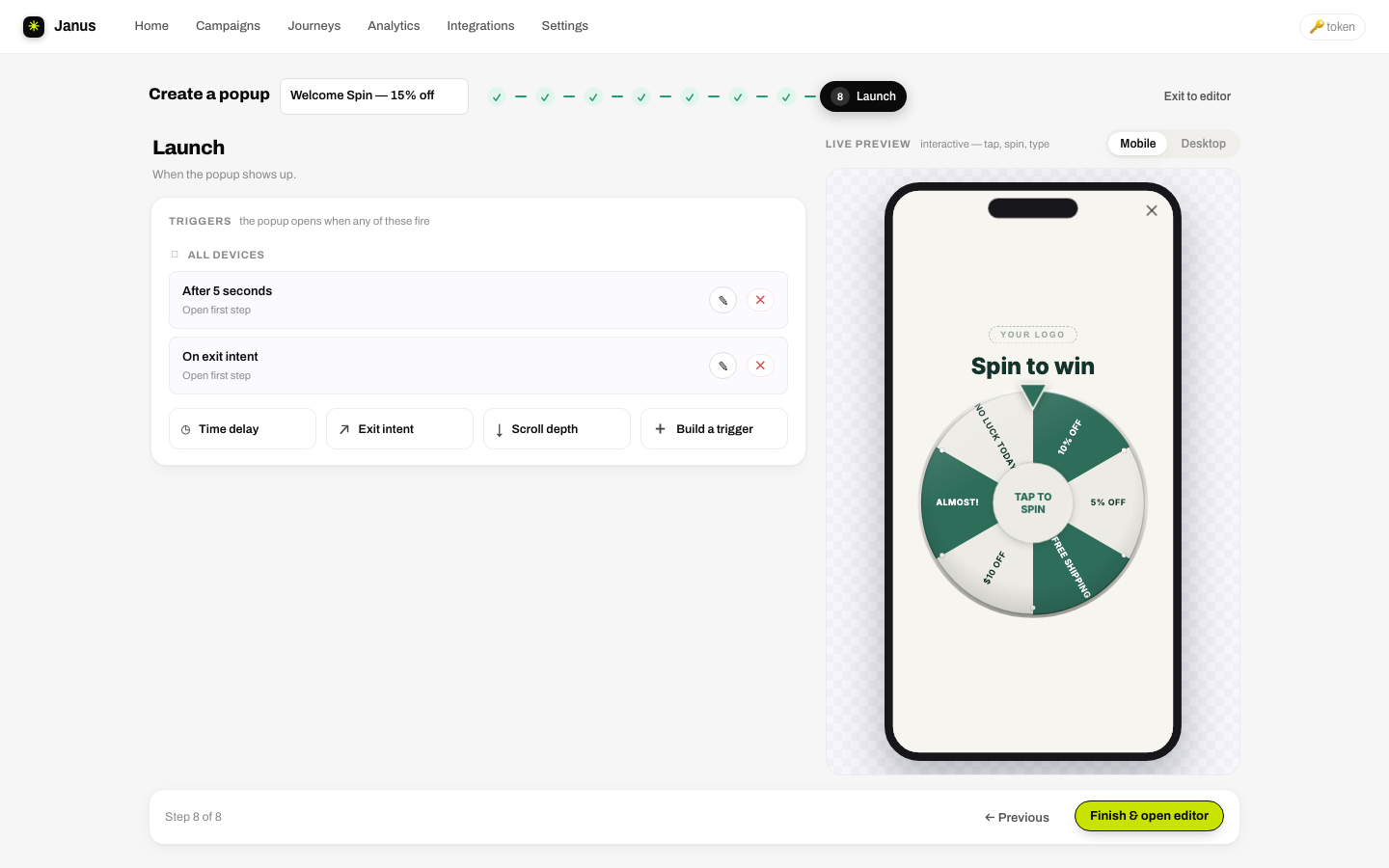
- Name: prefilled from your opener and the date ("Spin to win, 2026-07-19"), so you never end up with an "Untitled popup". Customers never see this name.
- Triggers: when the popup opens. Trigger cards are grouped by device scope (All devices / Mobile only / Desktop only), each with a plain-language summary and ✎ / ✕ controls. Quick-adds: Time delay, Exit intent, Scroll depth, and Build a trigger for the full multi-condition editor. The default is a 5-second delay, and at least one trigger is required to finish.
Finish saves everything as a draft ("Popup saved as a draft, opening the editor") and opens the builder.