Quick start
Zero to a live, game-powered signup popup in about ten minutes. Everything here stays editable later; nothing you pick is permanent.
1 · Create a popup
From Home or Campaigns, click + Create popup. Janus creates a draft and opens the wizard: a guided five-step flow with a live, interactive preview beside every step (tap it, spin it, type in it; it's the real popup).
Choose Build a popup. (The other door, Import a popup, clones the popup already running on your site; see Importing.)
2 · Pick a template
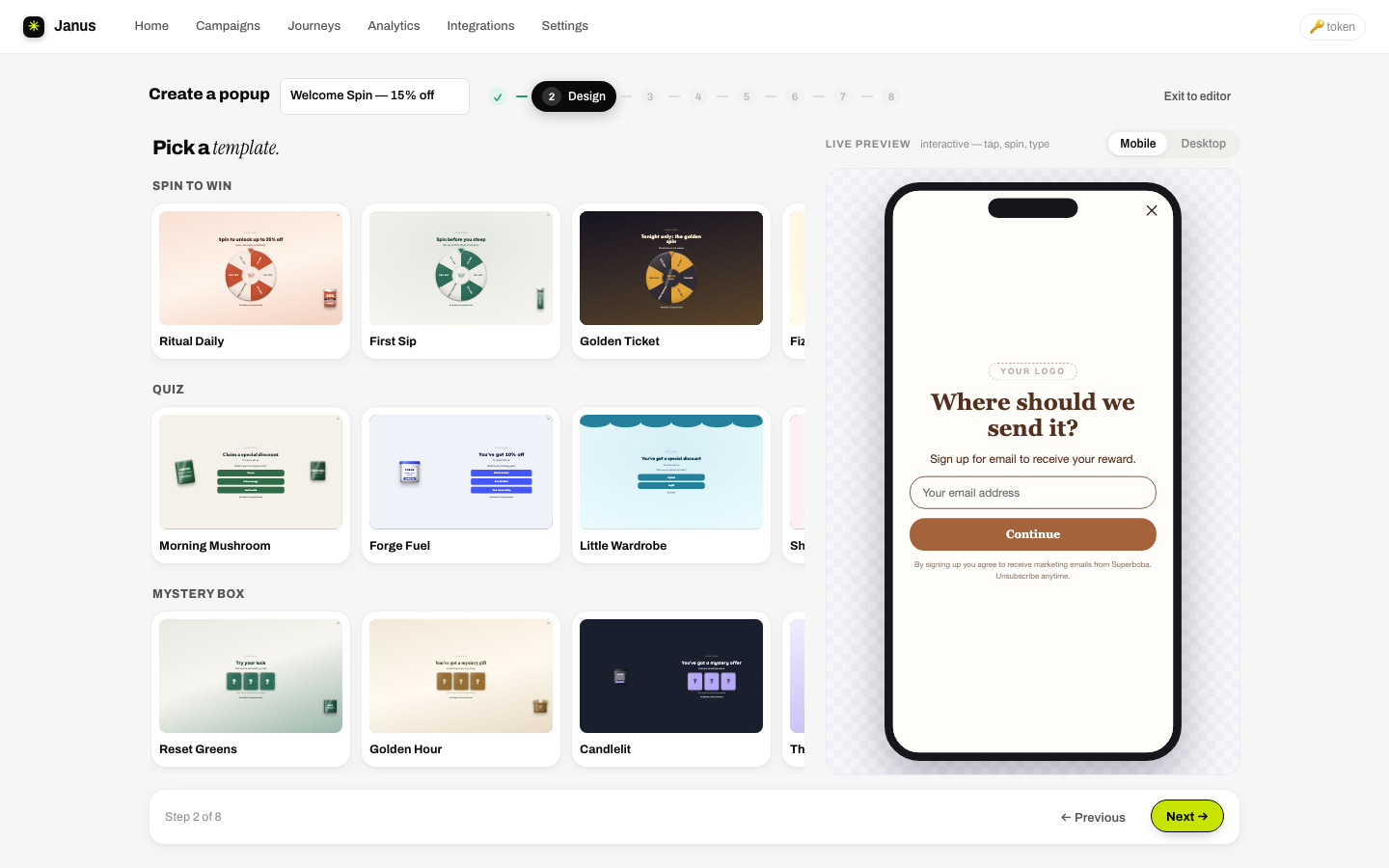
Pick any design that's roughly right; colors and copy are about to become yours anyway. Keep customizing → carries the design into the rest of the wizard; ✓ Use this design & edit skips ahead to the builder.
3 · Make it yours
On the Brand step, paste your website URL and hit ✨ Import from my site. Janus pulls your colors, logo and fonts straight from your live site (see importing). Or fine-tune by hand: color pickers, searchable Google Fonts, corner radius chips and a logo upload.
4 · Choose the opener
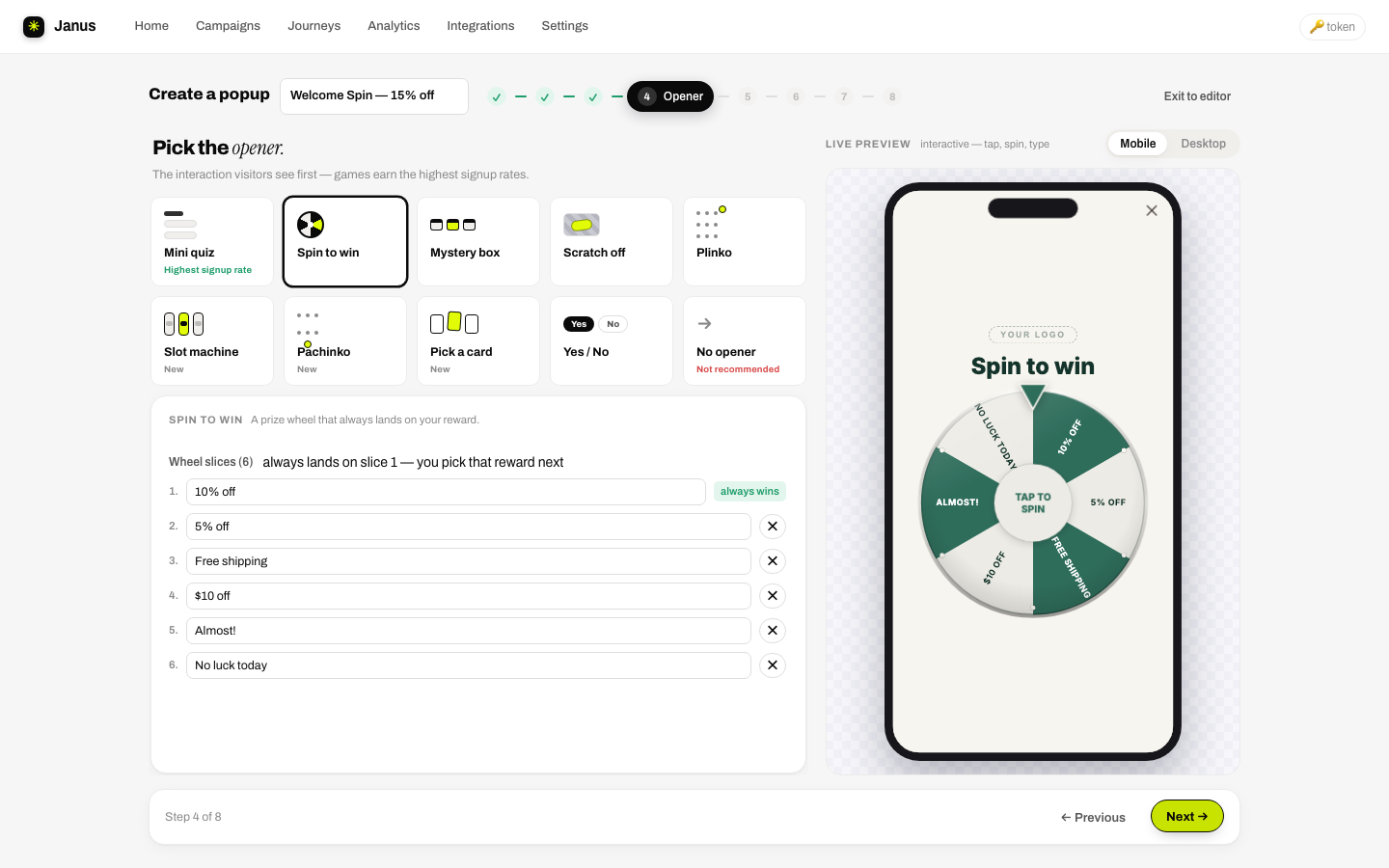
The opener is the first thing visitors see. A mini quiz collects zero-party data; games (spin, scratch, mystery box, plinko, slots, pick-a-card) make the offer feel earned. Spin-to-win always lands on slice 1; you choose what that slice says, and the decoys around it. Full options per game: Games.
5 · Keep a way back
The Teaser button step adds a small persistent button so visitors who close the popup can reopen it; pick its label and corner with the position dots. After signup it can become a copy-your-code chip. Recommended: on.
6 · Attach a reward
On the Offer step, keep Give an offer selected and pick a discount: either an existing Shopify code or + Create an offer for a unique one-time code per subscriber (with prefix, expiry hours, minimum spend and combinability). Details: Offers.
7 · Legal, then launch
The Sign-up step needs your legal name, terms-of-service URL and privacy-policy URL for the consent line under the email field. ⤓ Import from storefront fills them from your store. Tick the confirmation box.
On Launch, keep the default trigger (After 5 seconds) or add Exit intent / Scroll depth. Then hit Finish. It saves your popup as a draft and opens the editor.
8 · Publish and go live
You land in the builder with the popup assembled. Two clicks finish the job:
- Publish changes: pushes your draft design to the published version. Janus runs a ready check first and lists anything that would break (no steps, missing reward, broken links between steps).
- ○ Paused ▾ → Set live: flips the campaign on.
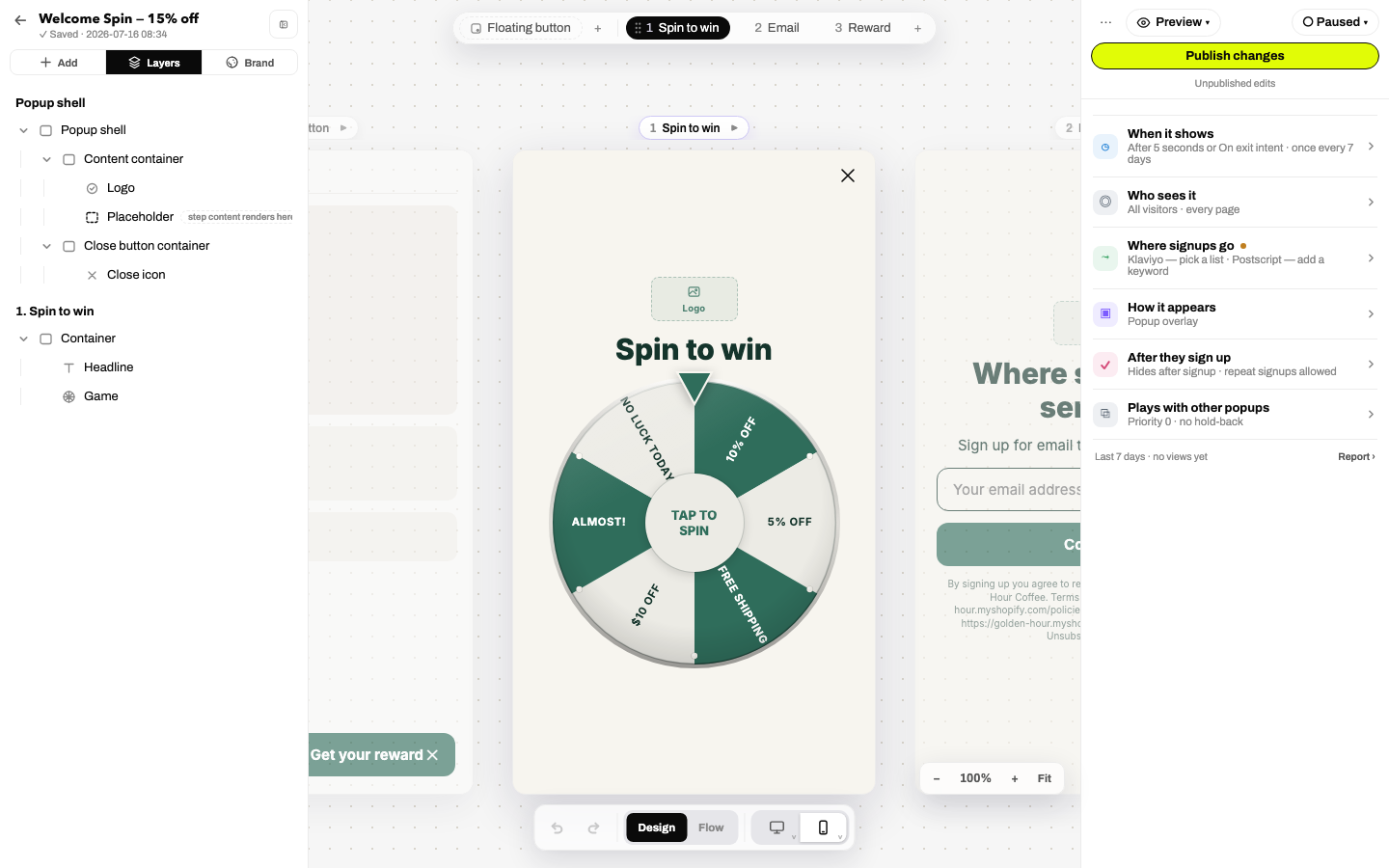
9 · See it on your store
If the widget is installed on your theme, open your storefront and wait five seconds. To check a popup before it's live, use ↗ Preview → Open on your store from the campaign card; it loads your storefront with ?ps_preview=ID so only you see it.